
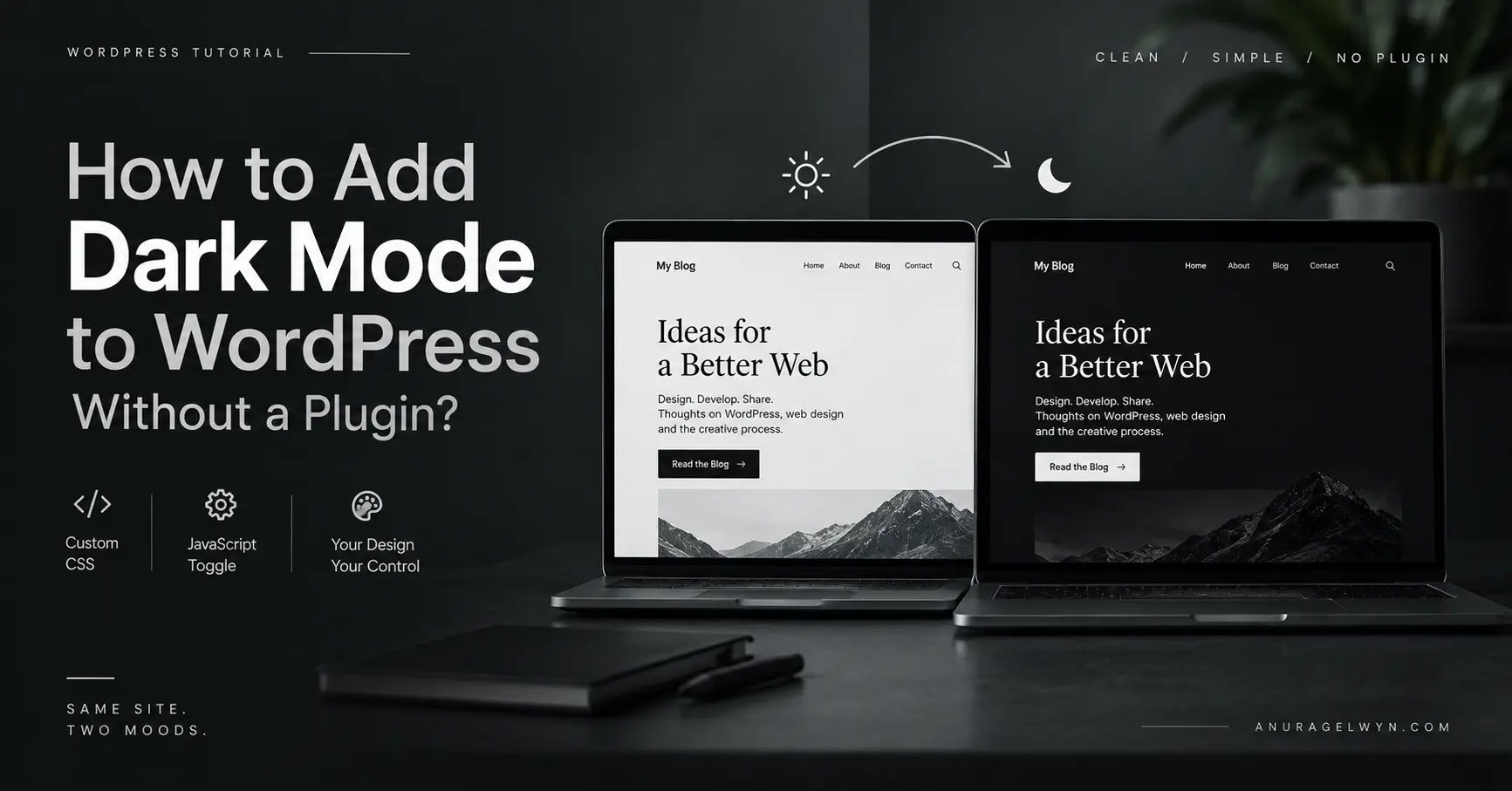
Dark mode toggles are everywhere now, and if you’ve ever gone looking for one on WordPress, you’ve probably landed on a plugin that promises to handle it for you. Some of them work fine. But if you’d rather have full control over exactly what changes, how it transitions, and which colors get used, it’s genuinely doable with a handful of custom CSS and JavaScript snippets — no plugin, no extra dependency to maintain.
I built this on my own site recently, and ran into a few real snags along the way — a flash of white light before the dark theme kicked in, and a couple of elements that stubbornly stayed light no matter what I did. This post is a full walkthrough for dark mode WordPress without plugin — using only custom CSS and JavaScript, snags included, since those are usually the parts tutorials skip.
Why skip a plugin?
A dedicated dark mode plugin isn’t a bad choice, especially if you want something quick with zero code. But there are a few good reasons to build it yourself instead:
- One less plugin to keep updated — every plugin is a small ongoing maintenance cost and a potential conflict with your theme or other plugins
- Full control over the exact colors and transition — plugins often apply a generic dark filter rather than a genuinely designed dark palette
- It’s lighter — a plugin usually ships more code than you actually need; a hand-built version is just the CSS and JS your site specifically requires
If you’re comfortable pasting a bit of code into your theme (via the Site Editor, a child theme, or a header/footer plugin like WPCode), this is a very manageable afternoon project.
Step 1: Set up your light and dark color variables
The foundation of this whole approach is CSS custom properties (variables). Instead of hardcoding colors throughout your stylesheet, you define them once, then swap the whole set based on a single class on the <html> element.
:root {
  --bg-color: #ffffff;
  --text-color: #111111;
  --text-secondary: #52525b;
  --card-bg: #f4f4f5;
  --border-color: #e4e4e7;
}

html.dark-mode {
  --bg-color: #111111;
  --text-color: #f4f4f5;
  --text-secondary: #a1a1aa;
  --card-bg: #1c1c1e;
  --border-color: #2a2a2d;
}

body {
  background-color: var(--bg-color);
  color: var(--text-color);
  transition: background-color 0.3s ease, color 0.3s ease;
}
The moment dark-mode gets added as a class on <html>, every variable’s value flips, and anything referencing var(--bg-color) or var(--text-color) updates instantly — no need to write separate dark-mode rules for every single element, as long as your styles consistently reference these variables.
Step 2: Build the toggle button
Next, a floating button the visitor can click to switch themes, plus the logic to actually toggle the class and remember their choice.
#dark-mode-toggle {
  position: fixed;
  top: 50%;
  right: 20px;
  transform: translateY(-50%);
  z-index: 9999;
  width: 48px;
  height: 48px;
  border-radius: 50%;
  background: var(--card-bg);
  border: 1px solid var(--border-color);
  display: flex;
  align-items: center;
  justify-content: center;
  cursor: pointer;
  box-shadow: 0 4px 12px rgba(0,0,0,0.1);
  font-size: 20px;
  transition: background-color 0.3s ease, transform 0.2s ease;
}

#dark-mode-toggle:hover {
  transform: translateY(-50%) scale(1.08);
}
<script>
document.addEventListener("DOMContentLoaded", function () {
  const toggle = document.createElement("div");
  toggle.id = "dark-mode-toggle";

  const isDark = document.documentElement.classList.contains("dark-mode");
  toggle.innerHTML = isDark ? "☀️" : "🌙";

  document.body.appendChild(toggle);

  toggle.addEventListener("click", function () {
    const nowDark = document.documentElement.classList.toggle("dark-mode");
    toggle.innerHTML = nowDark ? "☀️" : "🌙";
    localStorage.setItem("theme", nowDark ? "dark" : "light");
  });
});
</script>
Step 3: Remember the visitor’s choice
localStorage is what makes the preference stick between visits — once someone picks dark mode, it stays dark the next time they load your site, until they switch it back. That part’s already handled by the localStorage.setItem line above; the piece that’s still missing is checking for that saved preference when the page first loads. Which brings up the first real problem I ran into.
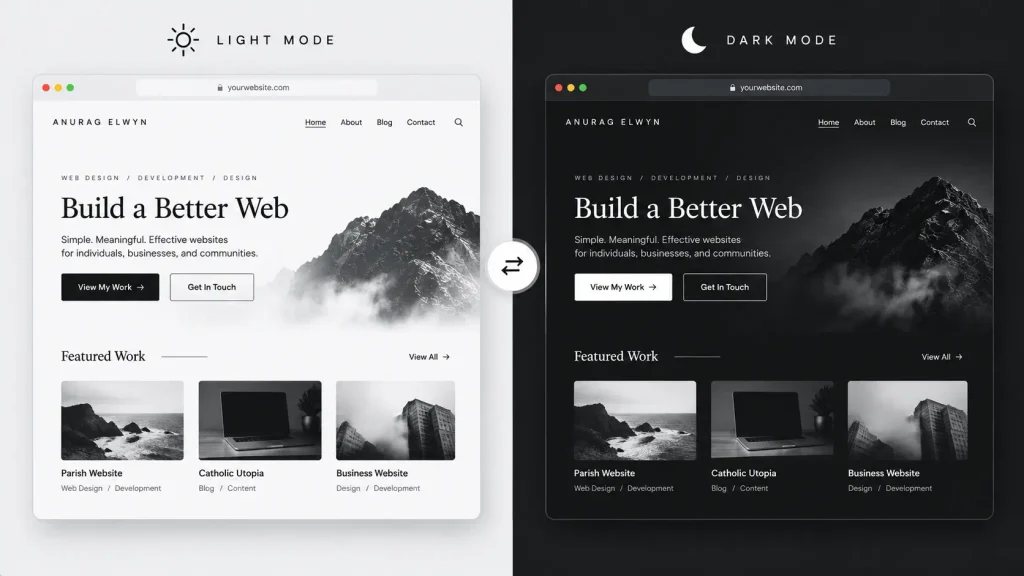
Fixing the “flash of white” on page load
Here’s the snag: if you only check localStorage inside a DOMContentLoaded listener, the browser has already started rendering the page in its default light styles by the time that check runs. The result is a visible flash of white before the page switches to dark — jarring, and honestly, it makes the whole feature look broken even though it’s technically working.
The fix is to move the theme check into its own tiny script that runs immediately, in the <head>, before the browser paints anything:
<script>
(function () {
  const saved = localStorage.getItem("theme");
  if (saved === "dark") {
    document.documentElement.classList.add("dark-mode");
  }
})();
</script>
This needs to load as early as possible — ideally directly in <head>, not bundled with your other footer scripts. Because it runs synchronously before the page renders, the dark-mode class is already in place by the first frame, so there’s nothing to flash.
Handling elements that don’t follow your theme automatically
This was the part that actually took the most troubleshooting. CSS variables only work if every element is actually using them — and on a real site, especially one built with page builders or third-party plugins, plenty of elements have their own hardcoded colors that won’t listen to your variables at all.
Two real examples I ran into:
A content block with its own background color set directly on it. Even though my general dark-mode rule targeted .wp-block-group broadly, one specific section had a background color typed directly into that block’s own settings — which takes priority over a more general CSS rule. The fix was tagging that specific block with its own class and overriding it explicitly:
html.dark-mode .services-wrapper {
  background-color: var(--bg-color) !important;
}
A form plugin with its own stylesheet. I’m using WPForms for my contact form, and its default styling ships with hardcoded label colors that looked fine on a white background but were nearly invisible on black. Same fix, different target:
html.dark-mode .wpforms-field-sublabel,
html.dark-mode .wpforms-field-label,
html.dark-mode .wpforms-field-description {
  color: var(--text-color) !important;
}
The !important is doing real work in both cases — it’s the only way to reliably override a more specific, pre-existing style without rewriting the plugin or block’s own CSS from scratch. The honest lesson here: building the light/dark variable system is the easy part. Auditing every section of your actual site — especially anything from a plugin or a block with its own explicit styling — is where the real time goes.
Dark mode WordPress without plugin: wrapping up
The full picture for dark mode WordPress without plugin: light/dark variables defined once, a toggle button that flips a single class, localStorage to remember the choice, a head script to prevent the white flash, and a bit of patience tracking down elements that ignore your theme by default. None of it is complicated on its own — it’s just a handful of small pieces that need to work together correctly.
If you’re building this on your own site and get stuck on a specific element that won’t switch themes, the fix is almost always the same pattern: find what’s overriding your general rule, tag it specifically, and override it back with a rule that targets html.dark-mode on that exact class.
This is the same build-it-yourself thinking I lean on for platform choices too — if you’re weighing WordPress against other options for a project, I broke that down in WordPress vs Wix vs Custom Code.
Got a WordPress project you’re weighing platform or feature decisions on? Let’s talk — happy to help you think it through.
Leave a Reply